
Quick Summary
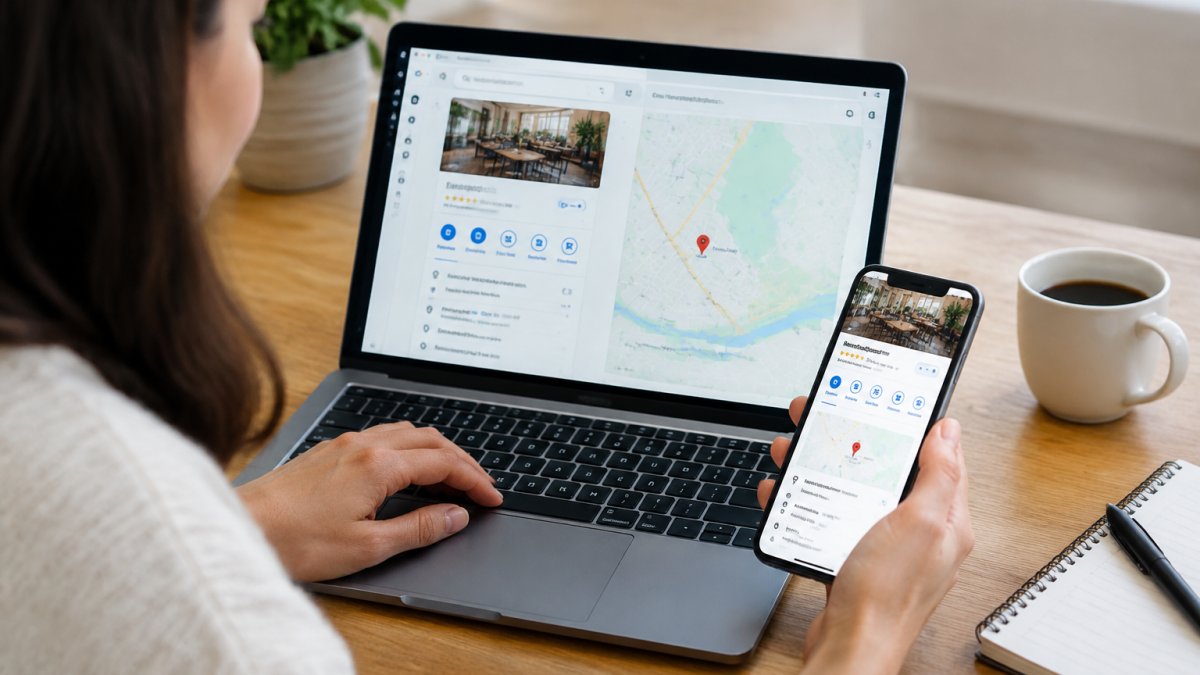
A Google Business Profile manager is a user role on your listing that lets someone edit information, publish posts, and reply to reviews without owning the profile. Owners keep full control, including adding and removing other users. Managers handle daily operations, which suits staff, agencies, and multi-location businesses.
- Owners can add and remove users, while managers cannot change the user list or delete the profile.
- Keep at least two owners on every profile so access is not lost if one person leaves.
- Confirm the postcard verification address matches the listing exactly, since mismatches cause failures.
- Remove a departing staff member's access the same day they leave.
- Agencies should be invited as managers, not owners, and removed when the engagement ends.
Table of Contents
- What a Google Business Profile Manager Can Do
- Accessing the Google Business Profile Dashboard
- Adding and Removing Managers Step by Step
- Owners and Managers: Choosing the Right Role
- How to Edit Google Business Profile Information
- Troubleshooting Access, Verification and Suspended Profiles
- Managing Profiles for Agencies and Multiple Locations
- Getting Your Profile Management Set Up Right
- Frequently Asked Questions
What a Google Business Profile Manager Can Do
A Google Business Profile manager is a user role on your Google Business Profile listing that lets someone edit information, respond to reviews, and publish updates without owning the listing. Owners hold full control, while managers handle daily operations.
In practice, a manager can update business hours, edit your phone number and website link, add photos, post updates, and reply to customer reviews. Managers usually cannot remove other owners or delete the profile itself.
Keeping that access current is part of good profile upkeep. The search features tied to your listing change often, so a manager who checks details regularly helps prevent outdated hours or wrong contact information from driving customers away.
Accessing the Google Business Profile Dashboard
Open the Google Business Profile dashboard at business.google.com while signed in to the Google account that holds access. The dashboard lists every location linked to that account and gives you a single place to view and edit each listing. The same controls are also reachable from Google Search and Google Maps, which is where many owners actually start.

Signing in and finding your profile
Sign in with the Google account that was invited as an owner or manager. If your profile does not appear, you may be signed into the wrong account, a common cause of confusion when staff use personal logins. Switch accounts from the profile icon in the top right corner and check again. If you manage more than one business, the location switcher at the top of the dashboard lets you move between them without signing out.
A quick tour of the manager interface
The dashboard is organized around a left-hand menu, and knowing where each control sits saves the most time:
- Home shows recent activity, unresolved reviews, and suggested edits Google has surfaced for your listing.
- Edit profile holds the fields customers see: business name, category, address or service area, hours, phone, website, and attributes.
- Photos is where you upload and organize cover, logo, interior, exterior, and team images.
- Posts is where you publish updates, offers, and events.
- Reviews collects customer reviews and lets you reply from one inbox.
- Messages handles customer chats if messaging is turned on for the listing.
- Performance reports calls, website clicks, direction requests, and searches that surfaced your profile.
- Users is the access list where owners and managers are added or removed.
From Google Search, typing your business name while signed in surfaces an owner view with edit, promote, and review controls. From Google Maps, select your listing and use the "Claim this business" or "Own this business" prompt if you have not yet taken control.
Claiming and verifying an existing profile
If a listing for your business already exists but no one on your team manages it, you can request ownership. Search for the business on Google Maps, select the listing, and choose the claim option.
Verification is the step most often delayed. Allow time for the postcard to arrive, and confirm the mailing address matches the listing exactly before you request it. Watch out: requesting a postcard to an address that differs from the one on the listing is one of the most common reasons verification fails and has to be restarted.
Adding and Removing Managers Step by Step
Follow these steps to add or remove someone from your profile:
- Sign in to business.google.com with an account that has owner access.
- Select the business location you want to change.
- Open the menu and choose the option for users or people access.
- Select "Invite" to add a new user, then enter the person's Google account email address.
- Choose the role you want to assign, either owner or manager.
- Send the invitation and ask the person to accept it from their own Google account.
- To remove someone, open the same users list, select their name, and choose remove access.
Check the users list after any change. A person who has left the company should lose access the same day, not weeks later.
Owners and Managers: Choosing the Right Role
Assign the owner role sparingly. Owners can add and remove other users, which means one owner can change who controls the listing. Most staff who update information day to day need only the manager role.
A reasonable rule is to keep at least two owners on every profile, so access is not lost if one person leaves. Give managers everything they need to publish and reply to reviews without handing over control of the listing itself.
The two access roles differ mainly in whether they can change who has access to the listing.
| Role | Can do | Cannot do |
|---|---|---|
| Owner | Add and remove users, edit everything | Nothing restricted on the listing |
| Manager | Edit info, publish posts, reply to reviews | Change the user list or delete the profile |
| Owners to keep | At least two per profile | One owner risks losing access |
How to Edit Google Business Profile Information
Once you are signed in, select a location and open the info section. Edit the fields that matter most to customers: business name as it appears in public, primary category, address or service area, phone number, website, and hours.
Keep the name consistent with your signage and other directories. For more practical tips on optimizing the details you enter, see our Google Business Profile optimization tips. Mismatched details across the web can confuse both customers and search systems.
Photos and posts also shape how people see your listing. Upload current images of your storefront and team, and publish updates when you run an offer or event. A listing that changes regularly looks active to people deciding where to go.
Google Business Profile Help on managing users
Troubleshooting Access, Verification and Suspended Profiles
Most access problems come down to the wrong account. Confirm you are signed in with the invited email before you assume the invitation failed.
If you cannot verify, check that the business address is eligible for verification and that the postcard was sent to the same address on the listing. Some businesses that serve customers at their location rather than from a storefront need a different setup, so review the service area options before retrying.
A suspended profile is more serious. Google may suspend a listing that violates its guidelines, such as duplicate listings or misleading information. Review the guidelines, correct any issues, and request a review through the dashboard.
Managing Profiles for Agencies and Multiple Locations
Agencies and multi-location businesses face the most risk from poor access control. When a freelancer or agency manages profiles, add them as managers on the business's own account rather than handing over an owner login. This keeps control with the business and makes an agency handoff clean when the relationship ends.
Role permissions and safe agency handoffs
Owners can add and remove other users, transfer primary ownership, and delete the profile. Managers can edit business information, publish posts, upload photos, and reply to reviews, but cannot change the user list or remove the listing. A practical handoff pattern most practitioners use:
- The business keeps at least two owner accounts on its own domain, not on agency email addresses.
- The agency is invited as a manager, not an owner, for day-to-day work.
- If the agency needs to invite its own staff, the business grants owner access temporarily and revokes it at the end of the engagement.
- On offboarding, the business removes the agency's users the same day and rotates any shared passwords or recovery emails.
Watch out: leaving an agency as an owner after a contract ends is one of the most common ways businesses lose control of a listing, and recovering it can require a lengthy ownership request through Google.
Bulk management for multiple locations
For several locations, review each listing's users separately, access does not inherit across locations. Consistent naming, hours, and categories across locations make reporting and cleanup far easier. Concrete workflows that hold up:
- Location groups. In the dashboard, group locations by region, brand, or franchisee so edits and reports can be scoped to a subset rather than the whole account.
- Bulk edits. Use the spreadsheet upload for hours, categories, and attributes when the same change applies to many locations; verify a sample of listings afterward, because a single malformed row can fail silently.
- Consistency checks. Keep a shared sheet of location names, store codes, primary categories, and manager emails, and reconcile it against the dashboard monthly.
- Performance rollups. Pull the Performance tab per location and compare calls, website clicks, and direction requests across locations to spot outliers that need attention.
If you are comparing tools for managing many listings, review options such as Google Business Profile management tools overview. Our comparison of EmbedSocial and Localo for local SEO shows how each handles Google Business Profile management and multi-location needs. Evaluate them on how they handle access, bulk edits, and reporting, and check that any tool you choose respects your ownership structure.
Local Visibility Engine also helps businesses with multi-location listings keep posts and profile details current across locations. For a practical starting point on building location pages, see our guide to local SEO landing pages for multiple locations.
Getting Your Profile Management Set Up Right
Start with a clear list of who needs access and what role each person should hold. Set up at least two owners, add managers for daily work, and remove anyone who no longer needs access.
Tracking results shows whether your management efforts are working. For more on tracking, read our guide to how to track local search rankings.
Keeping it current takes a few minutes a month, and that routine is what keeps your listing accurate for the customers searching for you.
Google Business Profile manager roles and permissions
Last Updated: November 12, 2026
Keeping your Google Business Profile accurate takes time, and most owners have little of it to spare. Local Visibility Engine handles the regular updates, optimization, and posting so your listing stays active and easy to find.
Frequently Asked Questions
How do I access Google Business Profile Manager?
Sign in to the Google account that owns or manages the profile, then open the Google Business Profile dashboard at business.google.com. Choose the business you want to manage from the list. If you do not see it, check that you are signed in with the correct Google account, since a profile is tied to the account that claimed or was invited to it. If the profile still does not appear, the account may not yet have been granted access, and the owner will need to add you as a manager.
How do I add a manager to my Google Business Profile?
Open the dashboard, select your business, and go to the users or people section in the settings. Choose to add a new user, enter the Google account email address of the person, and select the role you want to give them, typically manager or owner. Send the invitation and ask them to accept it from their own account. Only owners can usually add or remove other owners, so confirm you hold the right role before you start.
What is the difference between a Google Business Profile owner and manager?
An owner has full control of the profile, including the ability to add or remove other owners and managers and to change ownership settings. A manager can edit most business information, respond to reviews and publish updates, but typically cannot remove owners. For most businesses, giving day-to-day editing rights to a manager while keeping one trusted owner account is the safest arrangement, because it limits who can change the core ownership settings.
How do I edit my Google Business Profile?
From the dashboard, select the business and choose the option to edit profile or business information. You can update the name, address, service area, phone number, website, business hours and categories. Some changes, such as a new address, may require re-verification. Keep details consistent with what appears on your website and other directories, because mismatched information can reduce trust with both customers and Google.

Frequently asked questions
How do I access Google Business Profile Manager?
Sign in to the Google account that owns or manages the profile, then open the Google Business Profile dashboard at business.google.com. Choose the business you want to manage from the list. If you do not see it, check that you are signed in with the correct Google account, since a profile is tied to the account that claimed or was invited to it. If the profile still does not appear, the account may not yet have been granted access, and the owner will need to add you as a manager.
How do I add a manager to my Google Business Profile?
Open the dashboard, select your business, and go to the users or people section in the settings. Choose to add a new user, enter the Google account email address of the person, and select the role you want to give them, typically manager or owner. Send the invitation and ask them to accept it from their own account. Only owners can usually add or remove other owners, so confirm you hold the right role before you start.
What is the difference between a Google Business Profile owner and manager?
An owner has full control of the profile, including the ability to add or remove other owners and managers and to change ownership settings. A manager can edit most business information, respond to reviews and publish updates, but typically cannot remove owners. For most businesses, giving day-to-day editing rights to a manager while keeping one trusted owner account is the safest arrangement, because it limits who can change the core ownership settings.
How do I edit my Google Business Profile?
From the dashboard, select the business and choose the option to edit profile or business information. You can update the name, address, service area, phone number, website, business hours and categories. Some changes, such as a new address, may require re-verification. Keep details consistent with what appears on your website and other directories, because mismatched information can reduce trust with both customers and Google.