

Table of Contents
- Why Local Business Websites Fall Behind and What to Update First
- Choosing an Easy Website Builder for Small Businesses
- Step-by-Step: Making Common Edits on Popular Platforms
- Website Content Update Examples for Local Businesses
- How Often to Update Website Content: A Recurring Calendar
- Small Business Website Maintenance Checklist
- Start Your First Update This Week and Know When to Call a Developer
- Frequently Asked Questions
Last Updated: November 15, 2026
Why Local Business Websites Fall Behind and What to Update First
Most local business websites fall behind for one simple reason: nobody owns the updates.
Many owners mean well but wait for a "good time" that never comes. Start with the facts customers check first: opening hours, phone number, address, and services.
Here is what to update first, in order:
- Opening hours, including holiday changes
- Phone number, address, and email
- Service list and prices, where you show them
- Photos of the current storefront or team
Watch out: Old holiday hours are the most common complaint from local customers. Check them before every long weekend.
Choosing an Easy Website Builder for Small Businesses
You do not need a developer to run a small business website, but you do need the right platform. The best choice is a builder with a visual page editor, a built-in content management system, and automatic software and security updates.
Look for these features when you compare options:
- A simple editor: You can change text and images without touching code.
- Mobile-friendly templates: Most local searches happen on phones.
- HTTPS and automatic security updates: These protect your site with little effort from you.
- Blog or news pages: These let you publish updates and seasonal posts.
Ask the provider a few direct questions before you commit. Who handles software updates? Can you set user permissions so staff can edit without full control? What does it cost to add a page later?
Step-by-Step: Making Common Edits on Popular Platforms
Most platforms follow the same basic pattern: log in, open the page, edit the content, preview, and publish. Once you learn that pattern, you can make most changes in a few minutes. The difference between a confident editor and a nervous one is knowing where the preview, version history, and undo controls live before you touch anything.
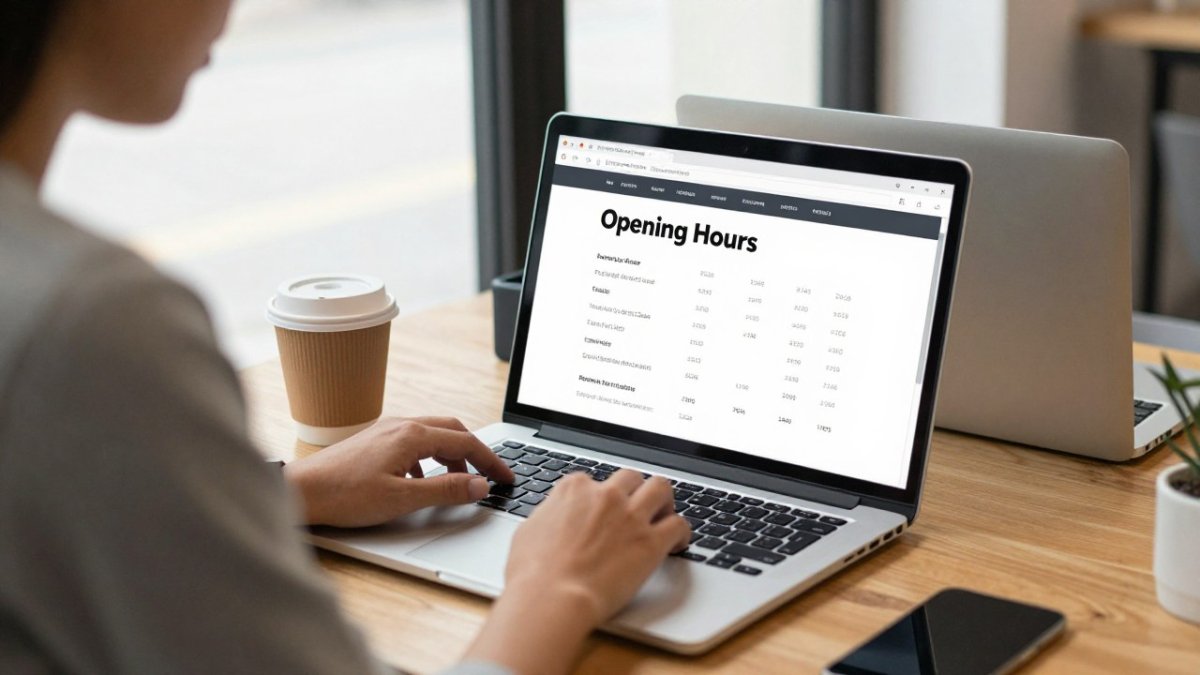
The universal edit routine (works on any platform)
Use this sequence for every change, whether you are on a hosted builder or a CMS:
- Log in with your own account, not a shared admin login.
- Open the page that holds the information, such as your home or contact page.
- Select the text box or block you want to change and type the new details.
- Use the platform's preview mode to view the page on a phone-width screen before publishing.
- Publish, then open the live page in a private browser window to confirm the change.
- If something looks wrong, use the platform's version history or undo option to restore the previous version.
Watch out: Publishing without previewing on a phone is the most common way owners break a layout. A block that looks fine on a desktop can overflow or hide a button on mobile.
Where the controls live on common platforms
The exact menu names vary, but the mechanics are consistent across the platforms most local businesses use:
- WordPress: Pages or Posts in the left menu, then the block editor. The Preview button is in the top bar. Revisions are under the document settings sidebar; open Revisions to compare versions and restore an earlier one. User roles (Administrator, Editor, Author, Contributor) let you give staff limited access.
- Squarespace: Pages panel, then click the page and Edit. Preview is in the top-right. Version history is under the clock icon in the editor; you can restore a saved version. Contributor permissions are set under Settings, then Permissions.
- Wix: Site menu, then Edit Site. Preview is in the top bar. Site history is under Site, then Site History; you can revert to a previous save. Roles are managed under Settings, then Roles and Permissions.
- Shopify: Online Store, then Pages or Blog posts. Preview is in the top-right of the editor. The theme editor keeps older versions you can duplicate or roll back to. Staff permissions are under Settings, then Users and permissions.
If your platform is not listed, search its help center for "version history" and "user roles." Every mainstream builder has both; finding them before you need them is the point.
Editing text, hours, and contact details
Keep your name, address, and phone number identical everywhere they appear, including the footer, contact page, and Google Business Profile. Inconsistent details confuse both customers and search engines. When you change a phone number, search the site for the old number and update every instance, including image-based text in headers or footers.
Adding photos and writing alt text
Good photos help visitors trust your business. Before you upload, resize large files so they load quickly. Save them with clear names such as "main-street-bakery-front.jpg" rather than "IMG_4432.jpg." A common pattern is uploading a 6 MB phone photo straight to the page; compress it first, because large images slow the page and can push visitors away.
Alt text describes an image for people using screen readers and for search engines. Write one short, plain sentence, such as "Owner Maria serving coffee at the front counter." Avoid stuffing keywords into it.
Safe editing, permissions, and rollback
Before you hand editing rights to staff, decide who needs which level of access. Most platforms let you assign roles so a front-desk employee can edit pages but not change themes, plugins, or billing. Use preview and version history on every change, and keep one administrator account that only the owner controls. If a change goes wrong, restore the previous version rather than trying to fix it live; restoring is faster and less risky.
Each platform keeps its preview, version history, and permission controls in slightly different places:
| Platform | Preview | Version history or rollback | Staff permissions |
|---|---|---|---|
| WordPress | Preview button in top bar | Revisions in document settings | User roles (Administrator, Editor, Author, Contributor) |
| Squarespace | Preview in top-right | Clock icon in the editor | Settings, then Permissions |
| Wix | Preview in top bar | Site, then Site History | Settings, then Roles and Permissions |
| Shopify | Preview in top-right of editor | Theme editor duplicate or rollback | Settings, then Users and permissions |
Website Content Update Examples for Local Businesses
Real updates are usually small. Here are common examples to copy:
- Restaurant: Change the weekly specials on the menu page and add a seasonal post.
- Plumber: Add a new service area to the location page after expanding.
- Dental practice: Update the new-patient page when you start accepting a new insurance plan.
- Salon: Add a before-and-after gallery after a busy season.
- Shop: Post a holiday hours notice and a short news item about a new product.
The value comes from making these changes regularly.
How Often to Update Website Content: A Recurring Calendar
Consistency beats volume. The goal is a schedule you can actually keep, with specific tasks tied to each interval so nothing depends on memory. Use this calendar as a starting point and adjust the seasonal items to your industry.
Weekly (15-20 minutes)
- Check the homepage for anything out of date, especially hours and offers.
- Publish one short news item, offer, or photo update.
- Read new reviews and note any recurring complaint that should change a page.
- Confirm the contact form still sends to an inbox someone monitors.
Monthly (30-45 minutes)
- Update photos, service details, and any seasonal pages.
- Click every link in the main navigation and footer; fix or remove broken ones.
- Compare your name, address, and phone number on the site against your Google Business Profile.
- Run the post-publish local check described below on any page you changed.
Quarterly (1-2 hours)
- Review your Google Business Profile against your website and update hours, categories, and services.
- Refresh staff bios and team photos.
- Review user roles and remove access for anyone who no longer needs it.
- Confirm backups are running and test restoring one.
Seasonal (before each major holiday or season)
- Update holiday hours and any special-event pages at least two weeks before the date.
- Swap seasonal photos and offers.
- Add a short post about the season, such as summer hours or a holiday closure.
- Remove or archive last season's promotions so visitors do not see expired offers.
Yearly (half a day)
- Review the whole site, retire old pages, and confirm your platform and plugins are current.
- Re-check page titles and meta descriptions against what each page now says.
- Confirm HTTPS is active and that no mixed-content warnings appear in the browser.
Put these tasks in your calendar with reminders. A recurring task is far more likely to get done than a vague intention to "update the site soon."
Post-publish local SEO check
After you publish a change, verify it supports local visibility rather than just looking correct:
- Open the live page in a private window and confirm the new text appears.
- Check the page title and main heading still describe the page and include your city or service area where natural.
- Confirm internal links point to the right pages and that location details match your Google Business Profile.
- Search your business name and category, and confirm your listing shows the new details.
- Note the change in a simple tracking sheet so you can see whether local search rankings move over time.
Accessibility and mobile quality check
Before you close the editor, run a quick pass on the page you changed:
- View it on a phone and confirm text is readable without zooming and buttons are easy to tap.
- Check that contrast between text and background is strong enough to read outdoors.
- Confirm every image has descriptive alt text and every link text says where it goes, not "click here."
- Make sure headings are in order (one main heading, then subheadings) so screen readers can navigate the page (Headings | Web Accessibility Initiative (WAI)).
Watch out: A page can look fine on your desktop and still fail on a phone. Previewing at phone width before publishing catches most layout problems.
Small Business Website Maintenance Checklist
Use this checklist once a month:
- Opening hours are correct, including holidays
- Phone number, address, and email match your Google Business Profile
- All photos load and have alt text
- Contact form sends a test message to you
- All links work, with no broken pages
Best for: Owners who want a repeatable routine rather than a one-off cleanup.
Skip if: You run a site with custom code or booking integrations that someone else maintains.
Start Your First Update This Week and Know When to Call a Developer
Start small. Pick one out-of-date detail, such as your hours or a service, and update it today.
Call a developer when something goes beyond routine edits: a site that breaks after an update, a redesign, custom booking tools, or repeated security warnings.
If you want help keeping your local listings and content current, Local Visibility Engine can handle the ongoing optimization, geotagging, and posting for you.
Frequently Asked Questions
How can I update my business website without a developer?
Most local business sites are built on a website builder or a content management system with a visual editor. Log in to the dashboard, open the page you want to change, edit the text or image block, preview the page, and publish. Keep a short list of what you change, such as opening hours, services and contact details, so the same information stays consistent across your site and your Google Business Profile. Start with one edit a week until the routine feels comfortable.
How often should a local business update its website?
A practical rhythm for most local businesses is a quick review of key facts monthly, such as hours, phone numbers and services, and a fuller content refresh every quarter. Add a new blog post or photo update when something meaningful happens, like a seasonal menu, a new staff member or a community event. Consistency matters more than volume, because search engines and customers both respond to pages that are accurate and current.
What website platform is easiest for a small business to update?
Platforms designed for self-service editing, such as Squarespace, Wix and Shopify for stores, use drag-and-drop editors that do not require coding. WordPress is also manageable for non-technical owners if the theme includes a visual page builder and automatic updates are switched on. Choose the platform based on which editor you find easiest during a free trial, and confirm that you can edit text, images and page titles without help.
How do I keep my business website secure without a developer?
Turn on automatic software updates, enable HTTPS, and use multi-factor authentication for every admin login. Limit editing permissions so that only the people who need to publish have accounts, and remove access for former staff. Keep a recent backup, which most hosts or builders provide, so you can roll back a mistaken change. If you receive a security notification you do not understand, contact your platform's support before ignoring it.

Frequently asked questions
How can I update my business website without a developer?
Most local business sites are built on a website builder or a content management system with a visual editor. Log in to the dashboard, open the page you want to change, edit the text or image block, preview the page, and publish. Keep a short list of what you change, such as opening hours, services and contact details, so the same information stays consistent across your site and your Google Business Profile. Start with one edit a week until the routine feels comfortable.
How often should a local business update its website?
A practical rhythm for most local businesses is a quick review of key facts monthly, such as hours, phone numbers and services, and a fuller content refresh every quarter. Add a new blog post or photo update when something meaningful happens, like a seasonal menu, a new staff member or a community event. Consistency matters more than volume, because search engines and customers both respond to pages that are accurate and current.
What website platform is easiest for a small business to update?
Platforms designed for self-service editing, such as Squarespace, Wix and Shopify for stores, use drag-and-drop editors that do not require coding. WordPress is also manageable for non-technical owners if the theme includes a visual page builder and automatic updates are switched on. Choose the platform based on which editor you find easiest during a free trial, and confirm that you can edit text, images and page titles without help.
How do I keep my business website secure without a developer?
Turn on automatic software updates, enable HTTPS, and use multi-factor authentication for every admin login. Limit editing permissions so that only the people who need to publish have accounts, and remove access for former staff. Keep a recent backup, which most hosts or builders provide, so you can roll back a mistaken change. If you receive a security notification you do not understand, contact your platform's support before ignoring it.