Table of Contents
- Why Geotagging Photos Matters for Local Search
- What Is a Geotag? Understanding GPS Coordinates and EXIF Data
- How to Add GPS Location to Photos on Your Phone
- Geotag Photos Online: Tools for Adding Location After the Fact
- How to Check Photo GPS Metadata Before You Upload
- Google Business Profile Photo Best Practices for Local Visibility
- Privacy Risks, Removing Geotags, and Platform Limitations
- Conclusion
- Frequently Asked Questions
Last Updated: October 19, 2026
Why Geotagging Photos Matters for Local Search
Most local owners treat photos as decoration.
When someone searches "dentist near me" or "plumber open now," Google leans on location signals to fill the map pack.
At Local Visibility Engine, we've seen the importance of a consistent online presence that proves where businesses are.
Below, we'll show you exactly how to geotag photos for Google, step by step: phone settings, online tools, metadata checks, and privacy traps.
What Is a Geotag? Understanding GPS Coordinates and EXIF Data
A geotag is a pair of GPS coordinates, latitude and longitude, stored inside an image's EXIF data.
EXIF data is the image file header: camera settings, timestamp, device model, and, when enabled, location accuracy down to a few meters.
Manual tagging means you add coordinates yourself; automatic embedding happens when your camera app grabs your location on capture. Both produce the same result in the file.
How to Add GPS Location to Photos on Your Phone
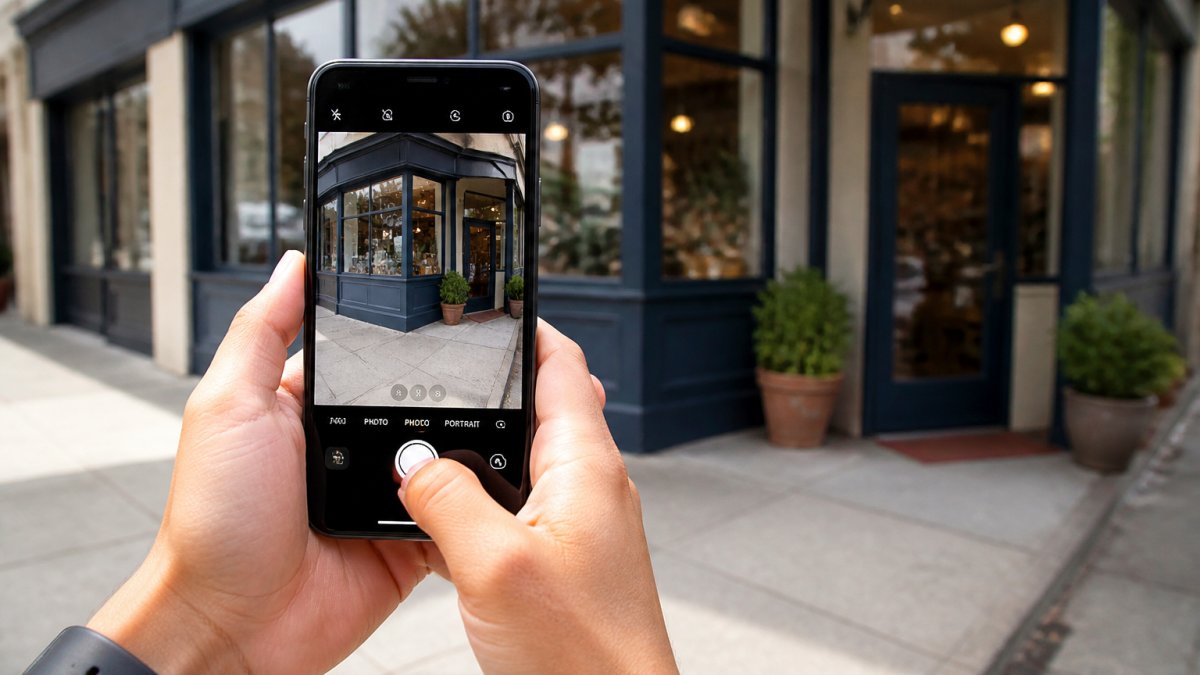
The fastest way to geotag photos is to let your phone do it at the moment of capture. Turn on location for your camera app, and every shot carries your GPS coordinates.
Enabling Location Permissions on iOS and Android
On iPhone, open Settings, scroll to Privacy & Security, tap Location Services, find Camera, and set it to "While Using the App." On Android, open Settings, go to Apps, select Camera, then Permissions, and allow Location.
- Check that Location Services is on system-wide first
- Confirm the camera app has permission, not just your maps app
- Test with one photo, then check the metadata
If location is off, your photos save with no coordinates. That's the most common mistake we see.
Using Your Camera App's Built-In Geotagging
Once permissions are set, open your camera and shoot normally, the app embeds coordinates automatically, no extra step or app required. To check, take one photo in front of your shop and view the image details; you should see a map snapshot or coordinate listing. If not, revisit the permission settings.
Geotag Photos Online: Tools for Adding Location After the Fact
If your photos are already taken, you can geotag them after the fact with a metadata editor. These tools open the image file, let you type in latitude and longitude, and write the coordinates back into the EXIF block without re-encoding the pixels.
The workflow is straightforward:
- Find your business coordinates from Google Maps (right-click your location, copy the decimal numbers)
- Upload the photo to an image metadata editor
- Paste latitude and longitude into the GPS fields
- Save and download the updated file
- Confirm the coordinates stuck before uploading
Which Tools Actually Preserve the Geotag
Most free web editors either rewrite the EXIF block in place or re-compress the image and strip metadata in the process, the second kind silently erases the geotag you just added. Look for tools that advertise EXIF editing rather than "image compression" or "optimization," and always re-check the file after download.
A few well-known options worth knowing:
- ExifTool (command-line, free, cross-platform), the reference implementation for reading and writing EXIF, including GPS. Steep learning curve, but it is the tool most bulk workflows are built on.
- ExifToolGUI, a Windows front-end for ExifTool that exposes GPS fields in a form.
- GeoSetter, a Windows desktop app built specifically for geotagging and map-based coordinate assignment.
ExifTool official documentation
Bulk Geotagging: The Workflow Most Guides Skip
Single-photo editing is fine for a storefront shot. It falls apart for a business portfolio. If you have fifty job-site photos from the same location, retyping coordinates fifty times is a waste of an afternoon.
A practical bulk workflow looks like this:
- Group by location first. Sort photos into folders by site or address before touching metadata. Mixing locations in one batch is how wrong coordinates end up on the wrong image.
- Set coordinates once per folder. ExifTool can write the same GPS values to every file in a directory with a single command, or a GUI tool can apply a coordinate set to a multi-selection.
- Verify a sample, not the whole batch. Open two or three files from each folder and confirm the coordinates and timestamp are correct before publishing.
- Keep the originals. Bulk edits are hard to reverse if you overwrite. Work on copies and archive the untouched files.
A common pattern among local marketers is to batch by service area: one folder per city or neighborhood, coordinates applied per folder, then uploads scheduled across the week.
Format and Quality Trade-offs
JPG is the safest format for geotagging because EXIF is native to the file structure and survives most editors. PNG support is inconsistent across tools, and WebP support for GPS metadata is spottier still, some editors drop it on save. If a photo must keep its geotag, export as JPG and avoid heavy re-compression, which can strip the metadata block along with the quality.
CONTACT US FREE BUSINESS ANALYSIS →
How to Check Photo GPS Metadata Before You Upload
Before any photo goes live, verify its GPS metadata. A wrong coordinate is worse than none, because it points Google at the wrong place.
Here's how to check photo GPS metadata on each platform:
- Windows: right-click the file, choose Properties, open the Details tab, scroll to GPS
- Mac: open the image in Preview, then Tools, then Show Inspector, and check the GPS tab
- Phone: open the photo, tap the info icon, and look for a map or location line
| Check | What to Look For | If It's Wrong |
|---|---|---|
| GPS coordinates | Matches your business address | Re-tag with correct numbers |
| Timestamp | Recent and accurate | Reset in metadata editor |
| Camera settings | Real device data present | Re-export from original |
| File format | JPG or PNG, metadata intact | Avoid heavy compression |
Run this check on every batch. It takes a minute and saves a lot of confusion.
Google Business Profile Photo Best Practices for Local Visibility
Photos on your Google Business Profile do more than decorate. They build trust with searchers and reinforce your business location. A steady flow of fresh, geotagged images keeps your profile active and discoverable.
Start with real photos of your storefront, team, and work. Avoid stock images. Google and customers both favor authentic shots that match the address on your profile.
File Naming, Image Optimization, and Upload Tips
Name files descriptively before upload. "joes-plumbing-van-downtown.jpg" beats "IMG_4821.jpg" every time. The filename is a small but real signal.
- Keep images sharp and well-lit
- Resize large files to load fast
- Upload new photos weekly, not once a year
This is where a hands-off approach helps busy owners. Local Visibility Engine automates the optimization, geotagging, and distribution of content across Google Business Profiles, social media, and websites. No technical skills required, and weekly updates keep your presence consistent.
Privacy Risks, Removing Geotags, and Platform Limitations
Geotags cut both ways. The same coordinates that help Google can expose your home address, your staff's routines, or a child's school if you post personal photos from your phone.
Most geotagging guides teach you to add coordinates and never mention how to take them back out, a problem, because "remove geotag" is one of the most common follow-up searches after someone learns their photos carry location data.
How to Remove Geotags from a Single Photo
The exact menu differs by device, but the mechanism is the same: you are either stripping the EXIF block on export or editing the GPS fields out of the file.
- iPhone: when sharing, tap Options at the top of the share sheet and turn off All Photos Data. The shared copy loses location and other metadata; the original in your library keeps it. To strip the original, use a metadata editor or a third-party app.
- Android: the share sheet on most recent versions includes a Remove location toggle. For a permanent strip, open the photo in a metadata editor and clear the GPS fields.
- Desktop: on Windows, right-click the file, open Properties → Details, and use Remove Properties and Personal Information. On Mac, open the image in Preview, go to Tools → Show Inspector → GPS, and delete the location fields.
Bulk Removal for Galleries
If you are clearing coordinates from a whole gallery, a bulk metadata tool is the only sane route. ExifTool can strip GPS tags from an entire directory in one command, and GUI front-ends like XnView MP let you multi-select files and clear the GPS panel. As with bulk tagging: work on copies, verify a sample afterward, and keep the originals archived.
Platform Limitations: Where Your Geotag Goes to Die
A geotag that works on your phone may not survive the upload. Platform behavior varies, and assuming otherwise leads to false confidence.
- Social networks commonly strip EXIF data on upload, including GPS coordinates, as a privacy measure. A photo geotagged on your phone can lose its coordinates the moment it is posted.
- Google Business Profile ties location to your verified business address rather than to each photo's EXIF. The profile itself carries the location signal, so a scrubbed photo does not necessarily hurt you there, but it also does not add a new signal.
- Google Photos is a storage and sharing layer, not a geotagging tool. It reads location for its own map features but does not reliably preserve or expose EXIF GPS in shared links.
The practical rule: geotag for uploads you control (your website, your Google Business Profile, your own image library), strip for personal photos and public social posts, and verify after upload rather than assuming the platform kept the data.
Conclusion
The hard part of local visibility isn't learning how to geotag photos for Google. It's keeping up with it week after week while you run a business.
That's exactly the gap Local Visibility Engine was built to close.
Want to see where your local visibility stands? Contact us for a free business analysis and find out what's holding your map ranking back.
Frequently Asked Questions
How do I geotag a photo for Google after I've already taken it?
You can add location data to an existing photo using an online geotagging tool or a photo metadata editor. Upload the image, search for the address or drop a pin on the map, then save the file with the new GPS coordinates embedded. This is useful for older photos taken before you enabled location permissions on your phone. Always verify the coordinates in the EXIF data before uploading to your Google Business Profile.
Does geotagging photos improve Google Business Profile rankings?
Geotagged photos can support local search visibility by reinforcing your business location signals, but they are one part of a larger strategy. Google uses many factors, including your profile completeness, reviews, and website content. Consistently uploading geotagged images with accurate GPS coordinates and descriptive file names helps Google connect your photos to your address. Combine this with regular posts and review responses for the strongest results.
How can I check if my photo has GPS metadata before uploading?
On Windows, right-click the file and open Properties, then look at the Details tab for latitude and longitude. On Mac, open the image in Preview and check the Inspector under Tools. On mobile, many gallery apps show a map preview or an info panel with location data. You can also use a free online EXIF viewer. If no coordinates appear, the photo is not geotagged and you will need to add them manually.
Can geotagging photos create privacy or security risks for my business?
Yes. Geotagged photos reveal your exact GPS coordinates, which can expose employee routines, storage areas, or security gaps if shared carelessly on social media. For public Google Business Profile images, geotagging your storefront is fine, but avoid posting photos taken inside private areas with precise coordinates. Strip location data from any image you send to third parties or post on personal accounts. Most phones let you remove location metadata before sharing.
Frequently asked questions
How do I geotag a photo for Google after I've already taken it?
You can add location data to an existing photo using an online geotagging tool or a photo metadata editor. Upload the image, search for the address or drop a pin on the map, then save the file with the new GPS coordinates embedded. This is useful for older photos taken before you enabled location permissions on your phone. Always verify the coordinates in the EXIF data before uploading to your Google Business Profile.
Does geotagging photos improve Google Business Profile rankings?
Geotagged photos can support local search visibility by reinforcing your business location signals, but they are one part of a larger strategy. Google uses many factors, including your profile completeness, reviews, and website content. Consistently uploading geotagged images with accurate GPS coordinates and descriptive file names helps Google connect your photos to your address. Combine this with regular posts and review responses for the strongest results.
How can I check if my photo has GPS metadata before uploading?
On Windows, right-click the file and open Properties, then look at the Details tab for latitude and longitude. On Mac, open the image in Preview and check the Inspector under Tools. On mobile, many gallery apps show a map preview or an info panel with location data. You can also use a free online EXIF viewer. If no coordinates appear, the photo is not geotagged and you will need to add them manually.
Can geotagging photos create privacy or security risks for my business?
Yes. Geotagged photos reveal your exact GPS coordinates, which can expose employee routines, storage areas, or security gaps if shared carelessly on social media. For public Google Business Profile images, geotagging your storefront is fine, but avoid posting photos taken inside private areas with precise coordinates. Strip location data from any image you send to third parties or post on personal accounts. Most phones let you remove location metadata before sharing.