
Last Updated: October 23, 2026
Quick Summary
Google Business Profile not showing on Maps usually comes down to verification issues, address problems, or profile restrictions. Your profile may exist but rank poorly, be suspended or flagged, or simply not be indexed yet, each has a different fix.
- Google requires a physical location customers can visit or a service business with a real office address; purely online businesses won't be listed on Maps.
- After claiming your profile, Google mails a verification code within 5-7 business days; until you enter it, your profile stays pending and won't appear on Maps.
- Address must match exactly what Google expects: complete street number and name, unit number if applicable, correctly spelled city and state, accurate ZIP, and no abbreviations.
- Service businesses must set a service area distinct from the business address; leaving it blank or making it too large are common mistakes that hide listings.
- A hard suspension removes the profile from Maps and Search entirely and requires an appeal with evidence; do not create a new profile to work around a suspension.
Table of Contents
- Why Your Google Business Profile Isn't Showing on Maps
- Check Your Business Profile Eligibility and Verification Status
- Diagnose Address Accuracy and Service Area Problems
- Understand Google Business Profile Suspension Reasons and Restrictions
- How to Optimize Your Google Business Profile for Maps Visibility
- Test Your Visibility Across Devices and Search Methods
- Resolve Duplicate Listings and Conflicting Business Data
- What to Do While Waiting for Your Profile to Reappear
- Frequently Asked Questions
Why Your Google Business Profile Isn't Showing on Maps
Your Google Business Profile not showing on Maps usually comes down to verification issues, address problems, or profile restrictions. Your profile may exist but rank poorly, be suspended or flagged, or simply not be indexed yet, each has a different fix. This guide covers verifying your profile exists, checking suspension flags, fixing address and service area problems, and testing visibility across devices.
Check Your Business Profile Eligibility and Verification Status
Google requires a physical location customers can visit, or a business that serves customers at their locations (Guidelines for representing your business on Google). Service businesses like plumbing or HVAC need a real office address; dentists and accountants use their practice location. Purely online businesses won't be listed on Maps.
Verify Your Profile Is Actually Claimed
First, check if you've actually claimed your profile. Many business owners assume they did but never completed the process.
Here's how to verify:
- Go to Google Business Profile
- Sign in with the email you used to claim the business
- Search for your business name
- If you see your profile in the results, you've claimed it
- If nothing appears, you haven't claimed it yet
If you haven't claimed it, do it now, without claiming, you have no control over what appears.
Understanding Google Business Profile Verification Pending Status
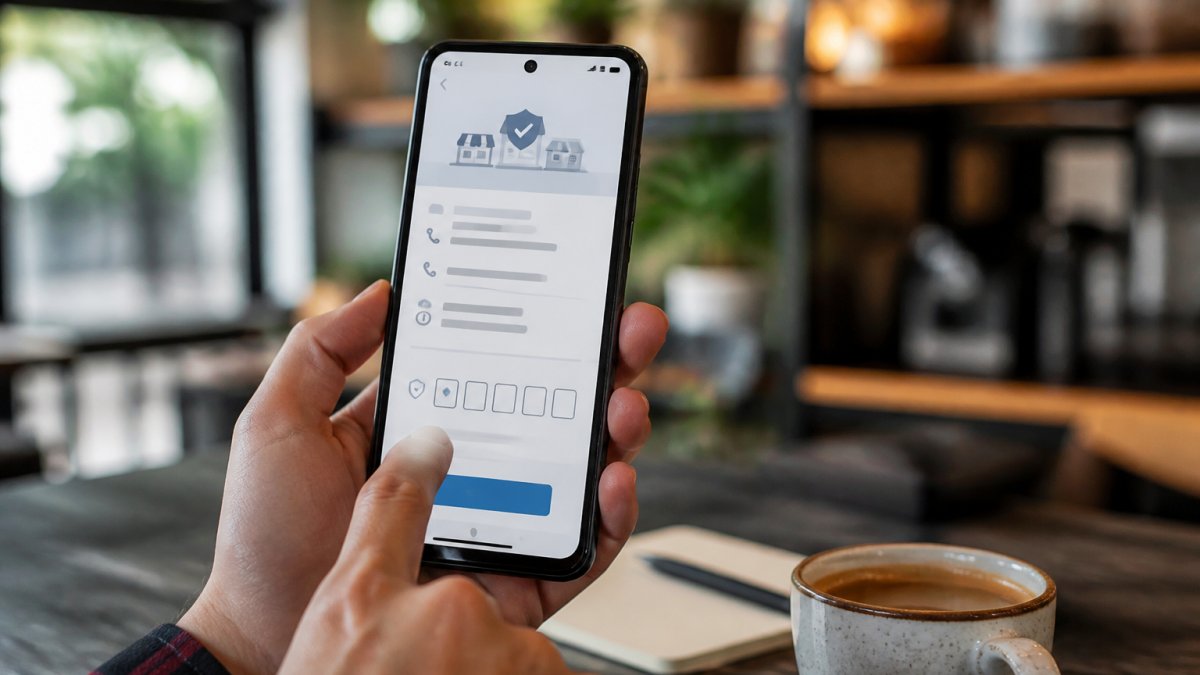
After claiming, Google mails a verification code within 5-7 business days. Until you enter it, your profile stays in "pending verification" and won't appear on Maps. Enter the code immediately, don't move your address, and add basic info. If the postcard never arrives, select "Verify this location" again to request a new code.
Diagnose Address Accuracy and Service Area Problems
Address issues are the second most common reason profiles disappear from Maps, a small typo can hide your listing.
Fix Business Address and Unit Number Formatting
Your address must match exactly what Google expects: complete street number and name, unit number if applicable, correctly spelled city and state, accurate ZIP, and no abbreviations (write "Street" not "St.").
- CORRECT: 123 Main Street, Unit 5, Miami, FL 33101
- WRONG: 123 Main St, Miami, FL 33101 (missing unit number)
- WRONG: 123 Main Street, Miami, Florida 33101 (state abbreviation incorrect)
To fix it: sign in, go to "Business Information," click "Edit" next to your address, verify every character, and save. Google takes 3-7 days to re-index after changes.
Configure Service Area Settings Correctly
Service businesses must set a service area, where you go to meet clients, distinct from your business address. Open your profile, go to "Service area," select "Service area" instead of "Fixed location," draw the area or enter ZIP codes, and save. Two common mistakes: leaving it blank and making it too large, a Miami plumber shouldn't cover all of Florida.
Understand Google Business Profile Suspension Reasons and Restrictions
A suspension is different from a verification delay or address problem: Google removes the listing from Maps and Search until resolved. The notification usually arrives by email and as a dashboard banner. If you see neither, run the diagnostic checks above first.
Soft Suspension vs. Hard Suspension
Suspensions fall into two buckets with different recovery paths:
- Soft suspension (warning or temporary restriction). The profile may still be visible but edits are blocked, photos rejected, or reviews stop publishing. Fixing the flagged item and resubmitting usually restores normal function.
- Hard suspension (full removal). The profile disappears from Maps and Search entirely, the usual meaning of "Google Business Profile not showing on Maps." Recovery requires an appeal with evidence.
Common Suspension Triggers and What Google Looks For
The most common triggers, per Google's Business Profile guidelines:
- Address ineligibility. A virtual office, PO box, or co-working address not staffed by your business during stated hours.
- Service-area business misrepresentation. Listing a storefront you don't operate from, or hiding your address to appear as a service-area business.
- Keyword-stuffed business names. Adding city names or service terms (e.g., "Joe's Plumbing Miami Emergency 24/7").
How to Appeal a Suspension: Evidence and Steps
A generic "please review my profile" message rarely works. The appeal is stronger when it directly answers the suspected trigger.
- Identify the cited guideline. Google usually names the policy area; if not, compare your profile against the triggers above.
- Fix the underlying issue before appealing. Correct the address, revert the name, remove ineligible service areas, or resolve duplicates. Appealing without a fix usually produces the same outcome.
- Gather evidence matching the trigger. For an address issue: business license, utility bill, lease, or photos of signage and interior. For a service-area business: documentation showing the area is legitimate. For a name issue: registration documents showing the real name.
- Submit through the Google Business Profile appeal form linked from the notification, or the dashboard's reinstatement option. Attach evidence as files, not links, where allowed.
- Keep a record of the date, reason cited, evidence submitted, and any case reference.
Realistic Timelines and What to Do While Waiting
Appeals are reviewed by humans: expect an initial response within several business days and a final decision within one to three weeks. While you wait:
- Don't submit duplicate appeals, repeated submissions slow the queue.
- Don't edit the profile repeatedly, each edit can reset review.
- Keep your website and citations consistent with the corrected profile data.
When to Escalate Beyond the Standard Appeal
If the standard appeal has been rejected twice, or the profile has been suspended for weeks with no response, escalate via the Google Business Profile Help Community (where Product Experts can review the case) or direct dashboard support channels. Escalation isn't a shortcut around the guidelines, it gets a human to look at evidence first-line review may have missed.
How to Optimize Your Google Business Profile for Maps Visibility
Even if your profile shows on Maps, it might rank poorly. Optimization helps it appear higher in local search results.
Complete Your Profile Information
A complete profile ranks better than an incomplete one. Fill in: business name, address and phone number, the most relevant category, hours, website URL, description, photos (at least 5-10 high-quality images), services offered, and payment methods. The more you provide, the better Google matches you to relevant searches.
CONTACT US FREE BUSINESS ANALYSIS →
Add Regular Posts and Updates
Google Business Profile posts keep your listing active and give Google fresh content to index. Post at least weekly: special offers, new services or products, announcements, events, and customer testimonials. Local Visibility Engine automates this, distributing them across your Google Business Profile, social media, and website simultaneously.
Test Your Visibility Across Devices and Search Methods
Most "my profile isn't showing" reports are one of three problems: the profile isn't published or verified, it's published but not indexed for Maps, or it's indexed but ranks poorly. A single search from your own phone can't tell these apart, use a repeatable test protocol.
The Three-Problem Diagnostic
Decide which problem you're diagnosing:
- Eligibility problem. The profile is unverified, suspended, or violates guidelines, it won't appear anywhere, for any query.
- Indexing problem. The profile is verified and compliant but recent changes aren't processed, or the listing is new. It may appear for the exact name but not category or service searches.
- Ranking problem. The profile exists on Maps and appears for the business name but not broader searches like "plumber near me." This is a relevance, distance, and prominence issue, not a visibility failure.
A Repeatable Test Protocol
Run these tests in order and record the results; the pattern tells you which problem you have.
Test 1, Exact name search on Maps. Search the exact business name in an incognito window and note whether the pin appears.
Test 4, Google Search vs. Google Maps. Run the same name-plus-city query in both.
Test 6, Different location. If you serve multiple areas, test inside and outside your service area; a service-area business may legitimately not appear outside its configured area.
Reading the Results
| Pattern | Likely problem | Next step |
|---|---|---|
| Not found in any test | Eligibility or indexing | Check verification status and suspension notifications |
| Found by exact name only | Ranking | Review categories, services, photos, and reviews |
| Found in Search but not Maps | Address or service-area configuration | Recheck address formatting and service-area settings |
| Found on desktop but not mobile | Personalization or app cache | Clear the Maps app cache and retest on mobile data |
| Found in one city but not another | Service-area boundaries | Confirm the service area covers the tested location |
Why Personalized Results Mislead Owners
Google tailors Maps results to the searcher's location, history, and device. An owner searching from the business location on a device that has searched the business many times often sees the profile even when customers don't, and an owner outside the service area may not see a profile customers inside it do. That's why the protocol calls for incognito mode, a different network, and a second tester.
What This Protocol Does Not Tell You
These tests confirm whether the profile is visible, not why it ranks where it does. If it passes Tests 1 and 2 but fails Test 3, the issue is competitive ranking, relevance, distance, and prominence, a different workstream from the troubleshooting covered here.
Resolve Duplicate Listings and Conflicting Business Data
Duplicate listings confuse Google, two profiles for the same business may be suspended or merged incorrectly. Search your business name in Google Maps, claim all listings, keep the most complete profile, and request to merge or delete the others. Conflicting information (differing addresses or a wrong phone number) also confuses Google, fix every discrepancy.
| Issue | Fix | Timeline |
|---|---|---|
| Duplicate listing | Claim and merge profiles | 1-2 weeks |
| Wrong address | Update in profile settings | 3-7 days |
| Suspended profile | Fix violation and request review | 1-2 weeks |
| Pending verification | Enter verification code | Immediate |
| Service area not set | Add service area to profile | 3-7 days |
What to Do While Waiting for Your Profile to Reappear
Google needs time to re-index your profile after changes.
If you've waited more than two weeks and your profile still isn't showing, talk with the Local Visibility Engine team about your business. We can diagnose the problem and develop a recovery plan, especially if your profile has been suspended or merged with a duplicate.
Also consider reading our Google Business Profile Optimization Tips for 2026 for comprehensive guidance on maintaining long-term visibility. If geotagging is part of your optimization strategy, our guide on how to geotag photos for Google walks you through that specific technique.
For a foundational approach to local visibility, check out our Local SEO and AI Visibility guide, which covers business information clarity, customer question management, and inquiry measurement.
Your Google Business Profile not showing on Maps is frustrating, but almost always fixable.
Act quickly: the longer your profile stays hidden, the longer you lose customer visibility.
Frequently Asked Questions
Why is my Google Business Profile not appearing on Google Maps?
Your profile may not appear due to several reasons: it hasn't been verified yet, your business address is formatted incorrectly, your profile violates Google guidelines, or it's been suspended. Start by checking your verification status in Google Business Profile. If it shows 'pending verification,' wait for the verification postcard or use instant verification if available. If your address has a unit number or unusual formatting, correct it immediately. Finally, review your profile for any guideline violations like restricted content or incomplete business information.
How long does it take for a Google Business Profile to appear on Maps after verification?
After verification, your profile typically appears on Google Maps within 1-7 days, though it can take up to two weeks in some cases. During this waiting period, ensure your business information is complete and accurate. Keep your address, phone number, and business category consistent. If your profile doesn't appear after two weeks, check that your business location meets Google's eligibility requirements and isn't flagged for guideline violations. You can verify visibility by searching your business name and city on both Google Search and Maps from different devices.
What does it mean when my Google Business Profile verification is pending?
Pending verification means Google has received your profile claim but hasn't confirmed you're the legitimate business owner. Google typically verifies through a postcard sent to your business address, which takes 5-10 business days. Look for a postcard with a verification code, then enter it in your Google Business Profile settings. Some businesses qualify for instant verification using a phone call or email instead. While verification is pending, your profile may have limited visibility on Maps. Complete your profile information fully during this time to be ready once verified.
Can a suspended Google Business Profile be recovered?
Yes, a suspended profile can often be recovered. Suspensions typically occur due to guideline violations like false information, restricted content, or suspicious activity. Review your profile for any violations and correct them immediately. If you find issues, fix them and request a review through your Google Business Profile settings. Google usually responds within 2-3 business days. If you believe the suspension is an error, submit an appeal with documentation supporting your business legitimacy. Avoid making major changes while under review, as this can delay reinstatement.

Frequently asked questions
Why is my Google Business Profile not appearing on Google Maps?
Your profile may not appear due to several reasons: it hasn't been verified yet, your business address is formatted incorrectly, your profile violates Google guidelines, or it's been suspended. Start by checking your verification status in Google Business Profile. If it shows 'pending verification,' wait for the verification postcard or use instant verification if available. If your address has a unit number or unusual formatting, correct it immediately. Finally, review your profile for any guideline violations like restricted content or incomplete business information.
How long does it take for a Google Business Profile to appear on Maps after verification?
After verification, your profile typically appears on Google Maps within 1-7 days, though it can take up to two weeks in some cases. During this waiting period, ensure your business information is complete and accurate. Keep your address, phone number, and business category consistent. If your profile doesn't appear after two weeks, check that your business location meets Google's eligibility requirements and isn't flagged for guideline violations. You can verify visibility by searching your business name and city on both Google Search and Maps from different devices.
What does it mean when my Google Business Profile verification is pending?
Pending verification means Google has received your profile claim but hasn't confirmed you're the legitimate business owner. Google typically verifies through a postcard sent to your business address, which takes 5-10 business days. Look for a postcard with a verification code, then enter it in your Google Business Profile settings. Some businesses qualify for instant verification using a phone call or email instead. While verification is pending, your profile may have limited visibility on Maps. Complete your profile information fully during this time to be ready once verified.
Can a suspended Google Business Profile be recovered?
Yes, a suspended profile can often be recovered. Suspensions typically occur due to guideline violations like false information, restricted content, or suspicious activity. Review your profile for any violations and correct them immediately. If you find issues, fix them and request a review through your Google Business Profile settings. Google usually responds within 2-3 business days. If you believe the suspension is an error, submit an appeal with documentation supporting your business legitimacy. Avoid making major changes while under review, as this can delay reinstatement.